How to Fix Back up and Restore iTunes Library with External Hard Drive
Back up and Restore iTunes Library with External Hard Drive
Let's say you have iTunes library backup on an external hard drive, then you can back up and restore iTunes library with the external hard drive. Follow the step-by-step guide below to restore.
Step 1Quit iTunes on your computer, and plug an external hard drive that have iTunes library backup into the computer.
Step 2On My Computer (Windows) or Finder (Mac), you can find the hard drive. Open the hard drive and navigate to find iTunes backup.
Step 3Drag iTunes Folder on the external hard drive to a location on your computer. The default location of iTunes is the best place to put the folder. You will be asked whether to replace the old one with the new one if the location you move the folder to contains iTunes library. If you move to the same location, old content will be overwritten. Thus please make sure iTunes Folder contains all media files that you want to restore before you move. Otherwise, it is better to move to another location.
Mac: Choose Go > Home from the Finder menu bar. Double click the Music folder.
Windows XP: Navigate to \Documents and Settings\username\My Documents\My Music\.
Windows Vista: Navigate to \Users\username\Music\iTunes.
Windows 7 and Windows 8: Navigate to \Users\username\My Music\iTunes.
Step 4While holding down the Option key on a Mac, or the Shift key on Windows, launch iTunes to pop up a window asking to Quit, Create Library or Choose Library. Click Choose Library.
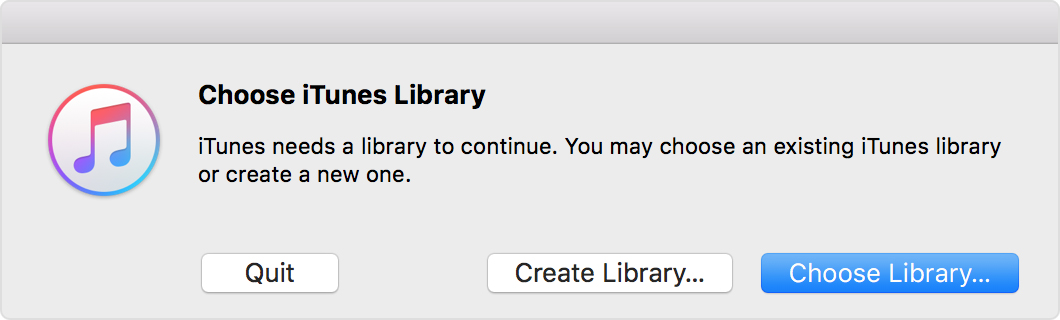
Step 5Locate the iTunes folder on a Mac or .itl file on Windows that you just restored from backup. Click Choose on a Mac or Open on Windows and select the iTunes Library.itl file inside. And then iTunes will launch, and that's it; you have successfully restore iTunes library from hard drive backup.
How to Manage and Back up iTunes Media Library?You may also like:online youtube downloader
You may also like:
Gihosoft Total Video Converter is a professional all-in-one video tool that enables you to convert videos and audios into various different formats. You can also download videos from YouTube or other online video sharing sites and convert them easily. Plus, you’re able to personalize your videos with its inbuilt editor, such as, trimming, cropping, applying video effects, adding watermark, subtitles, and more. If you need a powerful and professional desktop video converter program, just download Total Video Converter and follow the step-by-step guide here to have a try.Properly managing your iTunes media library is very important and this you can do by backing up your media. It usually does not take long before music, videos, and other files fill up your device. Therefore, organizing them well can contribute to your better enjoyment of iTunes. Follow the steps below to manage and backup your iTunes media library to external hard drive.You may also like:online youtube downloader
Step 1Quick iTunes on your computer, and plug an external hard drive to the computer.
Sponsor Ads:
Jihosoft Android Data Recovery: the best Android Data Recovery software for Windows and Mac to recover deleted contacts, messages, photos, videos, WhatsApp and etc from Android devices.Step 2Find your iTunes folder. The place of the folder varies according to your operating system of your computer. You can refer to Part 1 to locate the folder.
Step 2Drag the iTunes folder from its location to an external drive. Your library and media files will be copied to the drive.
Now, you can start to enjoy iTunes library to the fullest.
Kommentit
Lähetä kommentti