All about iTunes Previous Libraries
All about iTunes Previous Libraries
iTunes is a powerhouse when it comes to organizing your iPhone media (music, movies, podcasts, audiobooks, etc.) on your Windows PC or Mac. However, the software isn’t perfect and iOS users may experience some issues from time to time. One of such issues is the automatic creation of a folder known as ‘previous iTunes libraries’.
What Are Previous iTunes Libraries?
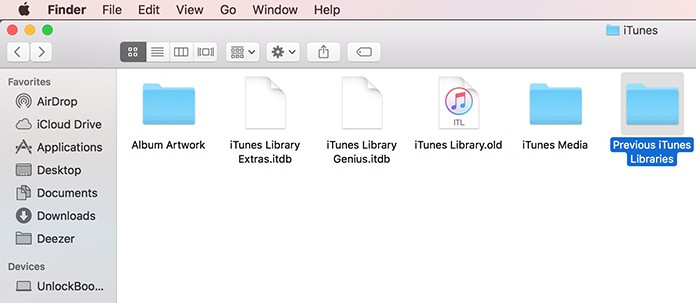
The ‘Previous iTunes Libraries’ is a folder located in the Music folder on your computer that contains backup files of your iTunes library. Usually, there is at least one backup of your iTunes library present on your computer, however multiple ‘previous’ versions may be created due to some reasons.
When Will Previous iTunes Libraries Be Created
Previous iTunes Libraries are created when you upgrade your iTunes software. It’s not the case when there are minor updates, but when you jump from an old version to a new version of iTunes (for example from iTunes 11 to iTunes 12), there may be significant changes in databases that would be incompatible with previous version. That’s why new library is created and the previous one is saved in ‘Previous iTunes Libraries’ folder.
Can I Delete Previous iTunes Library
While you can delete your previous iTunes library, it is not always recommended. This is because, the folder is created as a backup of your entire library so that you can easily restore it in case there are problems in the update or the new library gets damaged/corrupted. However, as mentioned before these files are merely backups and are not used by the upgraded version of iTunes.
So, if you are satisfied with the updated version of iTunes as well as your new iTunes Library and find no bugs in it, you can delete your previous library:
1. On Mac
If you are on Mac, then navigate to your Home, then select Music folder. You will see Previous iTunes Library folder there. Drag and drop that folder to the Trash, then empty it.
2. On Windows
Simply navigate to your Music folder on your computer and find iTunes folder, it will contain several subfolders. Now right click on the Previous iTunes Libraries folder and Delete them.

How to Avoid the Issue of Previous iTunes Library
There are many third-party iOS file management and file transfer tools that you can use to avoid all the hassles of iTunes. iMyFone TunesMate is a recommended option. It has received many positive reviews from Getintopc, Geekreply, etc.Sponsor ads:Fix Windows 10 Critical Error: Start Menu and Cortana Not Working
Sponsor ads:Add Animated Text to GIF with or without Photoshop
iTunes is a powerhouse when it comes to organizing your iPhone media (music, movies, podcasts, audiobooks, etc.) on your Windows PC or Mac. However, the software isn’t perfect and iOS users may experience some issues from time to time. One of such issues is the automatic creation of a folder known as ‘previous iTunes libraries’.
What Are Previous iTunes Libraries?
The ‘Previous iTunes Libraries’ is a folder located in the Music folder on your computer that contains backup files of your iTunes library. Usually, there is at least one backup of your iTunes library present on your computer, however multiple ‘previous’ versions may be created due to some reasons.
When Will Previous iTunes Libraries Be Created
Previous iTunes Libraries are created when you upgrade your iTunes software. It’s not the case when there are minor updates, but when you jump from an old version to a new version of iTunes (for example from iTunes 11 to iTunes 12), there may be significant changes in databases that would be incompatible with previous version. That’s why new library is created and the previous one is saved in ‘Previous iTunes Libraries’ folder.
Can I Delete Previous iTunes Library
While you can delete your previous iTunes library, it is not always recommended. This is because, the folder is created as a backup of your entire library so that you can easily restore it in case there are problems in the update or the new library gets damaged/corrupted. However, as mentioned before these files are merely backups and are not used by the upgraded version of iTunes.
So, if you are satisfied with the updated version of iTunes as well as your new iTunes Library and find no bugs in it, you can delete your previous library:
1. On Mac
If you are on Mac, then navigate to your Home, then select Music folder. You will see Previous iTunes Library folder there. Drag and drop that folder to the Trash, then empty it.
2. On Windows
Simply navigate to your Music folder on your computer and find iTunes folder, it will contain several subfolders. Now right click on the Previous iTunes Libraries folder and Delete them.
How to Avoid the Issue of Previous iTunes Library
There are many third-party iOS file management and file transfer tools that you can use to avoid all the hassles of iTunes. iMyFone TunesMate is a recommended option. It has received many positive reviews from Getintopc, Geekreply, etc.Sponsor ads:Fix Windows 10 Critical Error: Start Menu and Cortana Not Working
Sponsor ads:Add Animated Text to GIF with or without Photoshop
Kommentit
Lähetä kommentti