Tekstit

Näytetään blogitekstit, joiden ajankohta on helmikuu, 2019.

All about iTunes Previous Libraries
Kuva
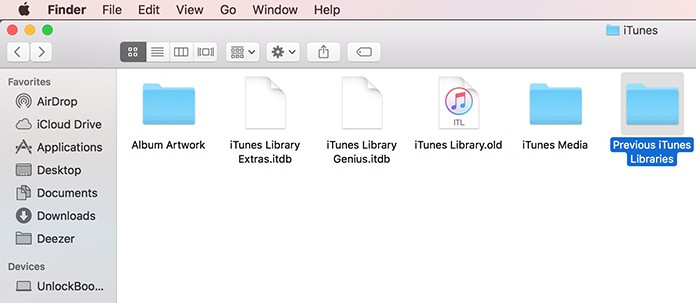
All about iTunes Previous Libraries iTunes is a powerhouse when it comes to organizing your iPhone media (music, movies, podcasts, audiobooks, etc.) on your Windows PC or Mac. However, the software isn’t perfect and iOS users may experience some issues from time to time. One of such issues is the automatic creation of a folder known as ‘previous iTunes libraries’. What Are Previous iTunes Libraries? The ‘Previous iTunes Libraries’ is a folder located in the Music folder on your computer that contains backup files of your iTunes library. Usually, there is at least one backup of your iTunes library present on your computer, however multiple ‘previous’ versions may be created due to some reasons. When Will Previous iTunes Libraries Be Created Previous iTunes Libraries are created when you upgrade your iTunes software. It’s not the case when there are minor updates, but when you jump from an old version to a new version of iTunes (for example from iTunes 11 to iTunes 12), there may be sign...
How to Force/Hard Reset iPhone without Computer

Kuva
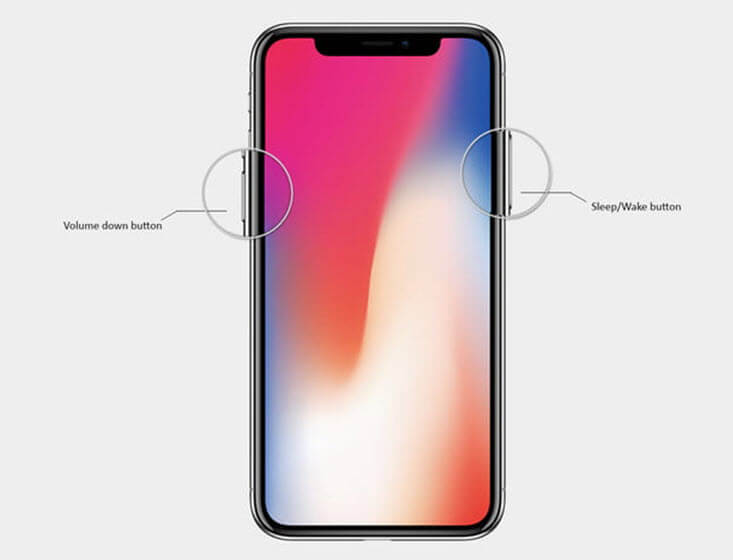
How to Force/Hard Reset iPhone without Computer Case 1. For iPhone 8, 8 Plus, And iPhone X It is recommended that you first back up all your data before attempting a hard reset on your iPhone 8. Once you have backed up all your important things, you can proceed to the hard reset process. Three buttons are used in the iPhone 8 force reset process: Power, Volume Up, and Volume Down button. Follow these instructions to hard reset your iPhone 8: Power off your iPhone 8. Now press and hold the Volume Up button for a few seconds and then quickly release it. Repeat the same steps for the Volume Down button. Press and hold it for a few seconds and then quickly release it. Now press and hold the Power button for a few seconds. Release the Power button once you see the Apple logo on the screen. Your hard reset process will start. Case 2. For iPhone 7 And 7 Plus Step 1: You will use two buttons here. They will be pressed at the same time. These are the Sleep/Wake and Volume Down buttons. Hold the...

Where Did My Text Messages Go on iPhone?

Kuva
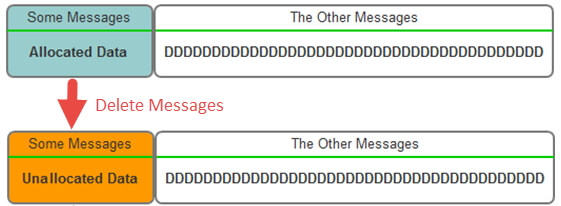
Phase 1. Where Did My Text Messages Go on iPhone? After losing the text messages, many users do not know where to find them and wonder where the lost text messages on iPhone are stored. The entire data in an iPhone is saved on the SQLite database. When the data is deleted specifically, the state changes from “Allocated” to “Unallocated”. However, the actual data remains there. While using the iPhone, when you create new data in future, it will occupy the “Unallocated” space first, replacing the existing data. If you back up your iPhone, not only existing data will get backed up but also the deleted data of your device. But when restoring that backup to your iPhone, you cannot view or access the deleted data via iTunes and iCloud. Phase 2. Can I Recover Deleted/Lost iPhone Text Messages? The answer is Yes. You might lose your text messages because of various reasons but it is possible to recover the lost or deleted messages on iPhone. If you have made a backup of your iPhone, you can re...