Tekstit

Näytetään blogitekstit, joiden ajankohta on elokuu, 2018.

How to Fix Back up and Restore iTunes Library with External Hard Drive
Kuva
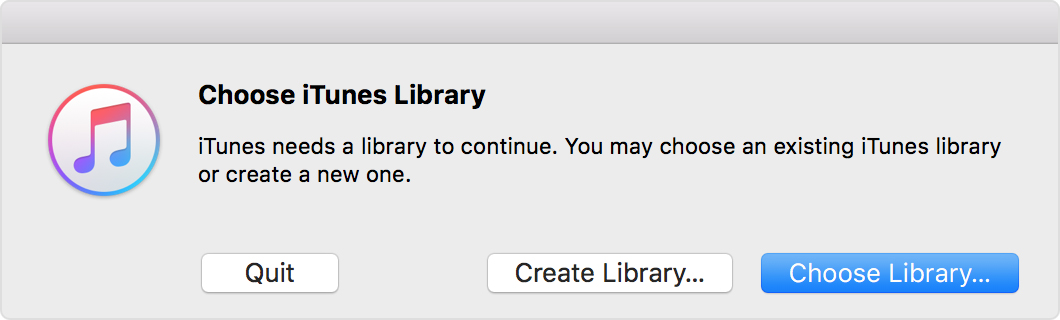
Back up and Restore iTunes Library with External Hard Drive Let's say you have iTunes library backup on an external hard drive, then you can back up and restore iTunes library with the external hard drive. Follow the step-by-step guide below to restore. Step 1Quit iTunes on your computer, and plug an external hard drive that have iTunes library backup into the computer. Step 2On My Computer (Windows) or Finder (Mac), you can find the hard drive. Open the hard drive and navigate to find iTunes backup. Step 3Drag iTunes Folder on the external hard drive to a location on your computer. The default location of iTunes is the best place to put the folder. You will be asked whether to replace the old one with the new one if the location you move the folder to contains iTunes library. If you move to the same location, old content will be overwritten. Thus please make sure iTunes Folder contains all media files that you want to restore before you move. Otherwise, it is better to move to ano...
How to Bypass or Remove iCloud Activation Lock from iOS 12 2019 Guide

Kuva
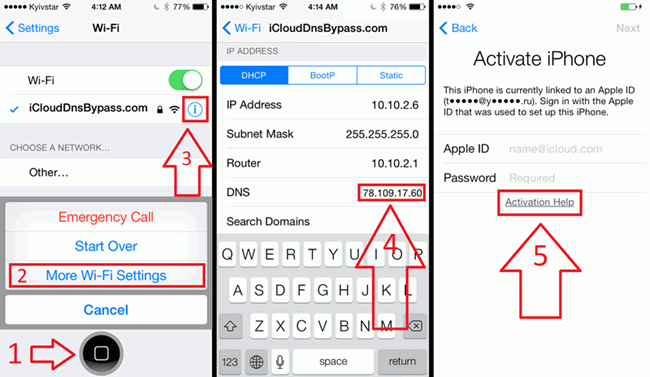
How to Bypass or Remove iCloud Activation Lock from iOS 12 Try DNS Method to Perform iOS 12 Activation Lock Removal This is a trick to remove iCloud activation lock in iOS 12. Many iOS 12 users have testified that this trick worked for them but others say it never worked. We believe it’s worth a try because it may work for you. Step 1. Reboot your iPhone, start the setup process and select your country & Language. Step 2. Choose a Wi-Fi network and connect to it. Then scroll down to “DNS” and type in one of the following digits based on your region: USA/North America: 154.51.7 Europe: 155.28.90 Asia: 155.220.58 In the rest of the world: 109.17.60 Step 3. Click “Back” on the top left corner of your screen. Click on your Wi-Fi network again to enter your Wi-Fi password, and tap “Join”. Step 4. Tap the “Back” tab at the button of the page, and your iPhone will try to activate and go to a new page. Quickly back “Back” tab at the top right corner of your page...